Maine Bait Shops
Maine Bait Shops
A quick tour of everything on the map page, plus how to suggest a shop or manage your own listing.
On the map page, the search box at the top has four tabs. Location is selected by default. Type in an address, town, or ZIP code, choose a search radius (5–25 miles), and click Go. The map will zoom to that area and the shop list will update to show only shops within your chosen radius, sorted by distance.
Click Clear to reset the search, zoom the map back out, and show every shop again.
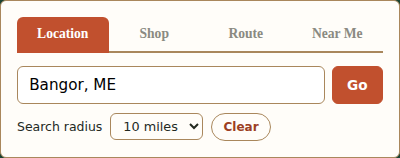
Click the Shop tab if you already know the name of a shop (or the town it's in). Start typing and the list below filters as you go — no need to press Enter. Click Clear to empty the search box and show every shop again.
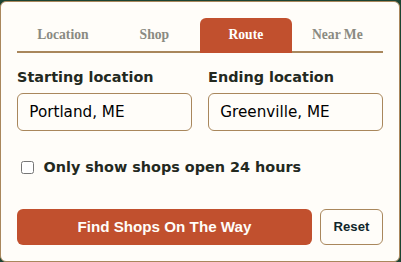
The Route tab is for road trips. Enter a starting location and an ending location, and optionally check Only show shops open 24 hours if you're traveling at odd hours. Click Find Shops On The Way and the site will draw your route on the map and show up to 5 shops with the shortest detour, each labeled with how many extra minutes they'd add to your trip.
Click Reset to clear the route and start over.
The Near Me tab uses your device's location (your browser will ask permission the first time) to show the 5 closest bait shops to wherever you are right now. This is the fastest option if you're already out and about.
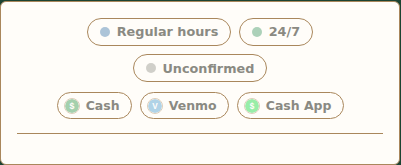
Below the search box, three pills let you narrow the shop list by hours: Regular hours, 24/7, and Unconfirmed. Below those, a second row of pills does the same thing for payment methods (Cash, Venmo, and so on) — it only shows pills for methods at least one shop actually accepts, so it'll look a little different depending on what shops have set up.
Both rows work the same way: click a pill to toggle it on or off. With none selected (or all of them selected), every shop is shown — selecting just some of them narrows the list to only shops matching what's still selected. These filters apply to the Location and Shop tabs; Route has its own 24-hour checkbox, and Near Me always shows the closest 5 shops regardless of hours or payment method.
Every shop that matches your current search shows up both as a pin on the map and as a card in the list below the search box. Green pins are open 24 hours (and show "24"), blue pins keep regular hours, and gray pins have unconfirmed hours — there's a legend in the bottom-left corner of the map as a reminder.
When shops are close enough together on screen, their pins merge into a numbered badge instead of stacking on top of each other. Click a badge to zoom in - it'll split apart into individual pins (or smaller badges) once there's enough room.
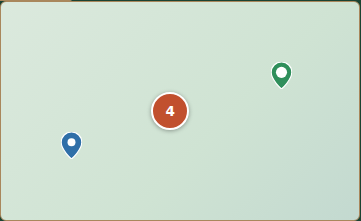
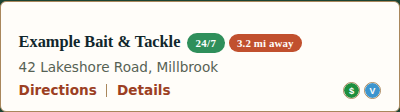
Clicking a shop's name in the list highlights its pin on the map (it grows slightly and gets a yellow outline) and opens its popup, without moving or zooming the map unless the pin is currently inside one of those cluster badges. Clicking a pin directly does the same thing. Each list card and popup has quick links for Directions (opens Google/Apple Maps) and Details (the shop's full page on this site), plus small icons for any payment methods the shop accepts — on the right end of that same row in the list, and on their own row (labeled "Accepted Payments") in the popup.
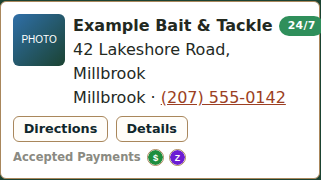
Clicking Details anywhere takes you to that shop's full page, with its hours, address, phone number (tap to call on a phone), website or Facebook link, and which payment methods it accepts. From there you can also get directions, or click Report a Problem if something looks outdated or wrong.
Don't see a shop that should be on the map? Click Suggest A Shop in the top navigation (or the link at the bottom of the shop list) and fill in what you know — name, address, and anything else you can provide. Every suggestion is reviewed before it's added.
If you own or manage a bait shop that's already listed, click Manage Your Shop in the top navigation to log in (or register) and claim your listing. Once claimed, you can keep your own hours, phone number, photo, and payment methods up to date without waiting on us to make the change.
Your dashboard and edit page also have a green/red toggle switch that controls whether your shop shows on the map at all — handy for a seasonal closure or a temporary break, without losing your listing. While it's off, the page still works if someone has your shop's direct link (with a clear notice that it's currently hidden), it just won't appear on the map, in the shop list, or in search results until you switch it back on.
On a phone, the top navigation includes an Add to Home Screen link. Tapping it either prompts your browser to install the site as an app icon directly, or walks you through the couple of manual taps needed (this varies slightly by browser). Once added, it opens like any other app, without the browser's address bar.